

What happens when you bring together skilled, curious colleagues and give them a space to show what they’ve been experimenting with? You get Behind the Screens, our regular practice-sharing hour where we share ideas, ask questions and aim to spot new ways of working.
Each session is a relaxed, no-pressure opportunity to hear what others are working on, works-in-progress, or “not sure if this is useful but…” ideas. The focus is on learning from each other and improving communication across a large team.
In today’s session, we had three excellent demos, each offering a different angle on how digital tools are being used and adapted in practice. From streamlining workflows in Canvas to developing AI-assisted learning materials and experimenting with new video editing platforms. Here’s what we’ve been up to.
The demos
Three colleagues shared their latest experiments and projects. Here’s a quick look at what they showed us and why it matters.
Demo 1. Stephen’s custom Canvas API tools
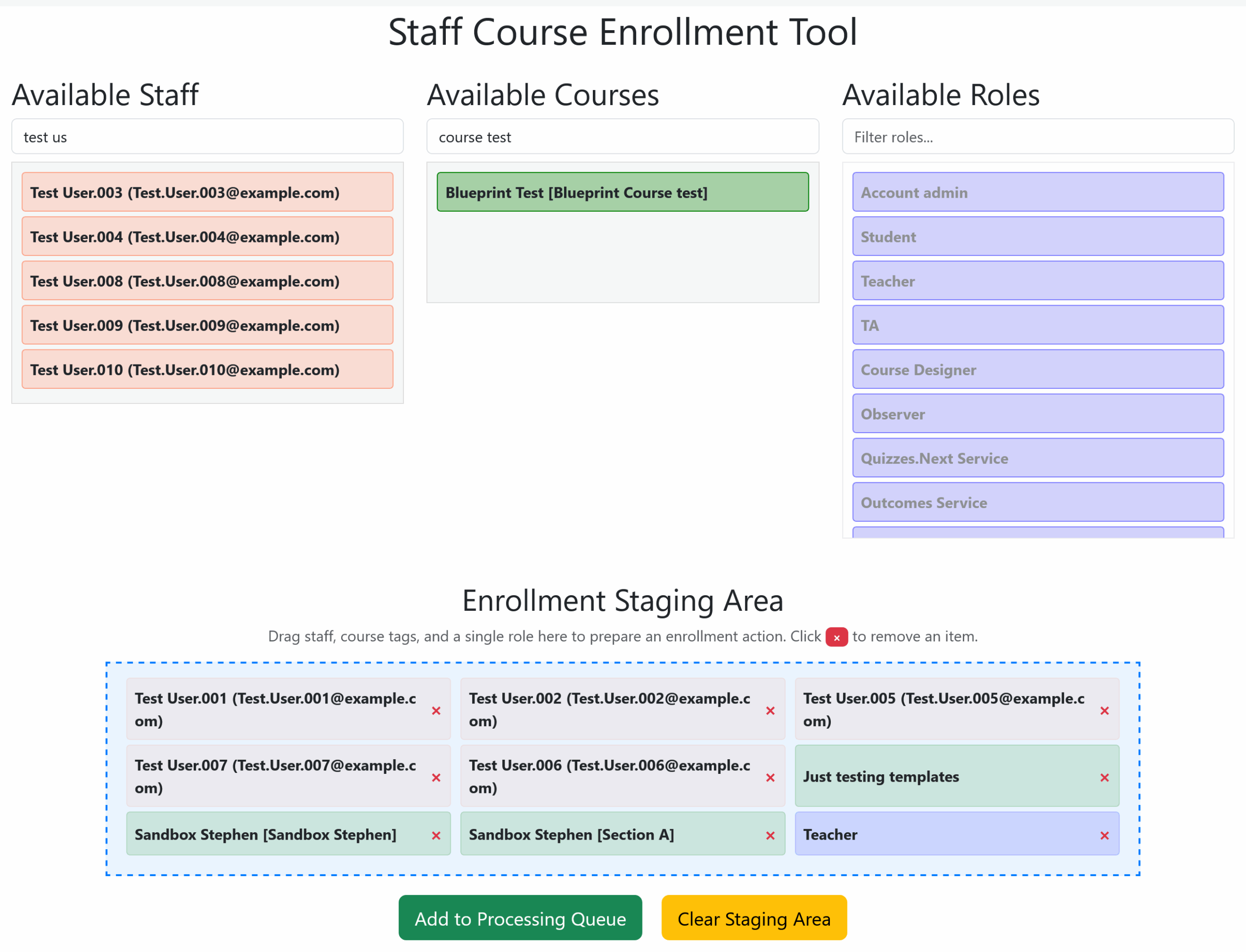
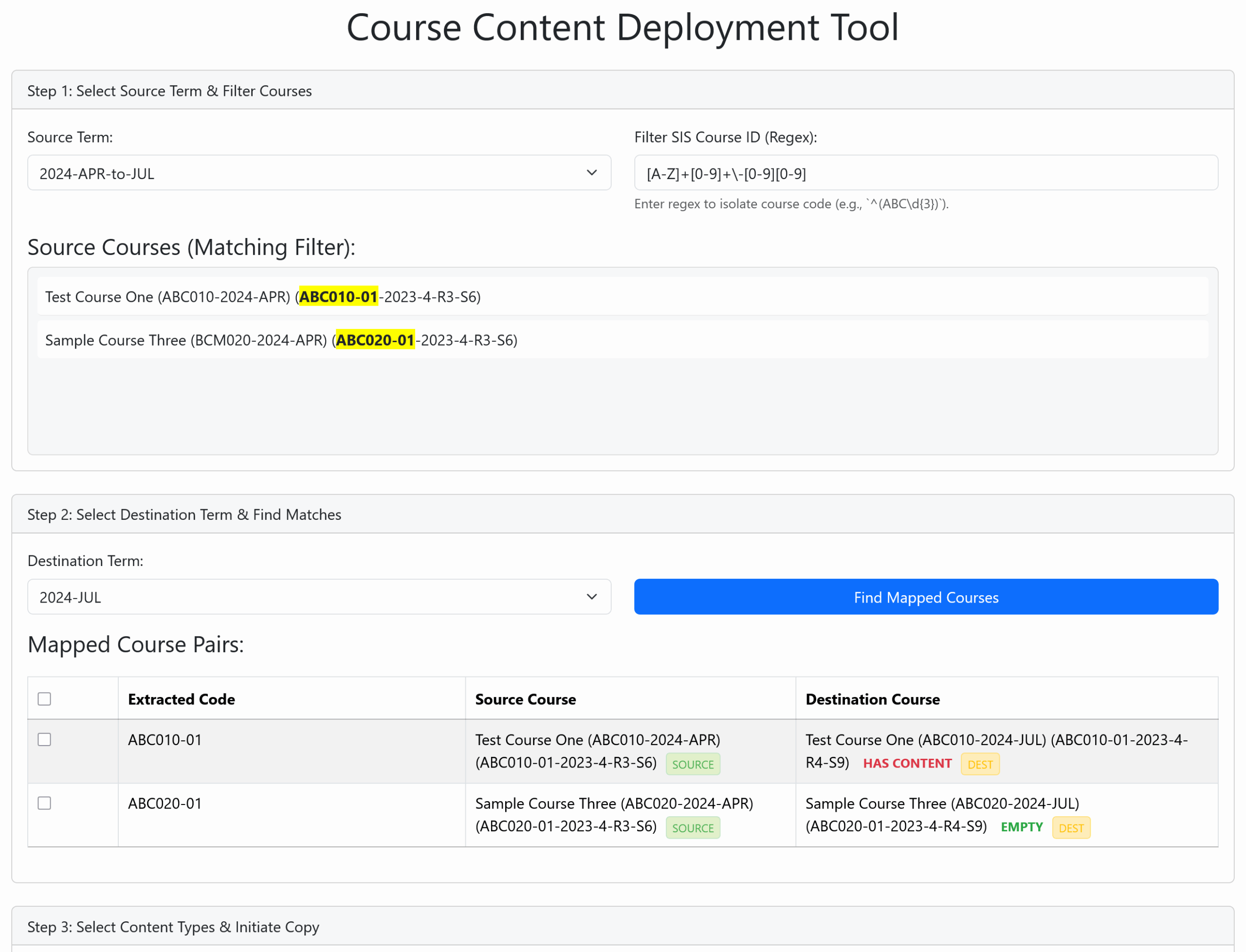
Stephen shared a suite of tools he’s built using the Canvas API to bridge functional gaps in the VLE. His goal is to streamline tasks that are either manual, inefficient, or impossible within Canvas’s standard interface. Key developments included:
- Bulk enrolment tool: Allows us to enrol multiple users on multiple courses with drag-and-drop functionality.
- Content rollover tool: Uses regex pattern-matching to map and copy course content between sessions, with checks for existing content.
- Staff rollover tool: Copies staff enrolments across sessions, simplifying start-of-term setup.
- Copy-to-many tool: Enables content to be copied from one course into many others: something not natively supported in Canvas.
- User management tools: Built to create, confirm, and soft-delete test users in bulk.
- User log tool: Offers visibility into backend log data, including impersonation activities that Canvas’s standard logs don’t expose.
His approach balances the creativity of problem-solving with the pragmatism of API workarounds, often supported by iterative debugging using Gemini. These tools aim to reduce reliance on spreadsheets and GUI-heavy workflows while preparing for broader Canvas rollout complexities.


Demo 2. Catherine’s use of ChatGPT for course design
Catherine demonstrated how she’s using a custom GPT to design content for an accountancy module on performance management. Despite not having an accountancy background, she used the tool to:
- Generate draft weekly structures including learning outcomes, key concepts, and suggested activity types.
- Align content with ACCA materials and performance management pedagogy by uploading structured context gradually.
- Develop scripts and activity ideas that academics can then personalise or expand.
- Review content quality and flow by prompting ChatGPT to assess logical progression and avoid duplication.
This method allows for rapid, structured content development, especially in time-constrained situations. Catherine emphasised the importance of scaffolding the AI with relevant materials and using it iteratively rather than relying on any single output. While some hallucination and inaccuracy occurred, the process was seen as collaborative: using AI as a “very good but occasionally very stupid colleague.”

Demo 3. Sue’s video editing experiments with Descript and Coursera
Sue tested Descript’s integration with Coursera, exploring its potential for video editing and AI-enhanced features. Highlights included:
- Text-based editing: Allows users to cut, rearrange, and subtitle videos by editing a transcript: a familiar workflow for podcast editors.
- AI-assisted splitting: Automatically divides long videos into smaller chunks, although Sue noted it lacks nuance (e.g. intros/outros aren’t added automatically).
- Avatar feature: AI-generated avatars can be used to introduce or summarise sections, potentially useful as a coaching or bridging device in split videos.
- Limitations: Descript doesn’t currently support visual text replacement (e.g. changing “Chapter One” on-screen), and AI voice replacement requires manual consent from speakers.
- Screencasting and teleprompter: Handy tools for self-recording content with built-in scripts.
Whilst promising, Sue concluded that Descript’s strengths currently lie in supplementary use cases (e.g. rapid edits, light automation, or student intros), and that more familiar tools like Premiere may still offer greater control for professional video editing.

What came through strongly in this session is that innovation in higher education isn’t always about large-scale projects or new platforms. Often, it’s about everyday creativity: adapting tools, experimenting with AI, and finding better ways to do familiar tasks.
Behind the Screens gives colleagues a chance to share that kind of practical, hands-on work in a low-pressure space. It fosters a culture where challenges are shared early, prototypes are celebrated, and solutions are developed collaboratively.
This blog post was developed with the assistance of generative AI tools to support transcription summarisation of the meeting. Final edits and judgement were provided by a human author.
